What's new: a faster Salesfinity sidebar, built for the keyboard


Updated October 6, 2026
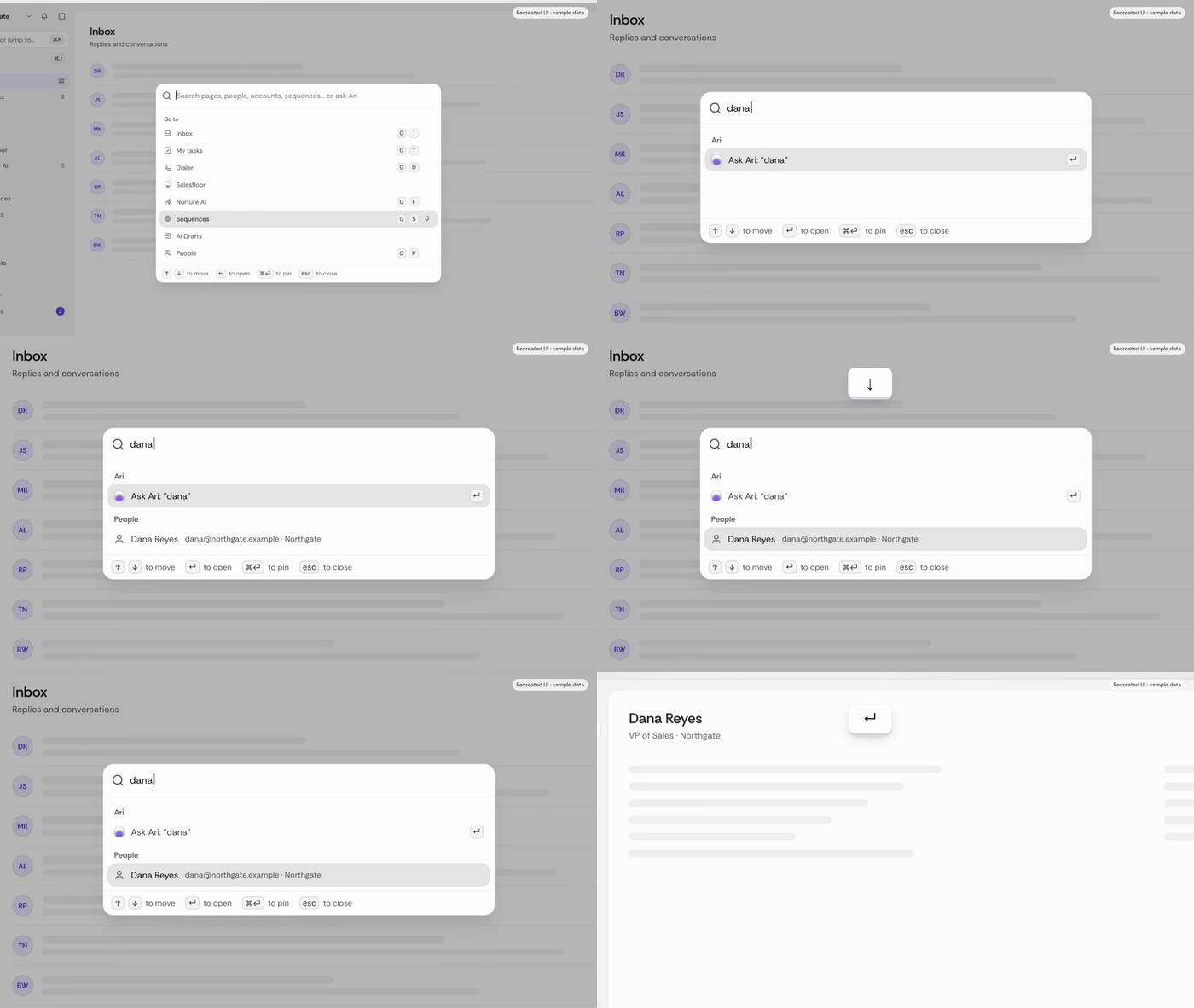
The new Salesfinity sidebar puts everything one keystroke away. Press Cmd+K (Ctrl+K on Windows) to search pages, people, accounts and more, pin what you use every day, and jump anywhere with G-then-a-letter shortcuts. Less time hunting through menus, more time on the phone.
Why did we rebuild the sidebar?
Every click spent looking for a page is a click not spent on a call. As Salesfinity grew from a dialer into a place where reps call, write, research and track their work, the old menu got long. Finding the right page meant scanning and scrolling.
So we rebuilt navigation around three ideas:
Built for speed. The pages you open ten times a day should be one keystroke away.
Keyboard first. Search, jump, pin and collapse without touching the mouse.
Grouped like the work. Calling, outreach, records, Ari and insights each get their own section, so the layout matches how a sales day actually flows.
It is all part of the same goal: build pipeline at superhuman speed.
How is the sidebar organized now?
At the top is your personal group: Inbox and My tasks. Below that, pages are grouped by the job they do:
Calling: Dialer, Salesfloor, Nurture AI
Outreach: Sequences, AI Drafts
Records: People, Accounts
Ari: Activity, Routines, Goals
Insights: Analytics (with its reports, like Call history and Scorecards, right in the sidebar) and AI Training
Settings and Help & support sit at the bottom. Each person only sees what their plan and team allow, so nobody scrolls past pages they can't open. Some pages, like Sequences, are in early access and show up only for teams that have them.
Can I find anything without clicking through menus?
Yes. Press Cmd+K (Ctrl+K on Windows) or click Search at the top of the sidebar. One box searches:
Pages and Analytics reports
Settings tabs (Account, Team, People, Connections, Ari)
Saved views
People and accounts
Sequences, routines and goals
Results only include things you have access to. Use the arrow keys to move, Enter to open and Esc to close. If you have Ari, you can type a question and send it straight to Ari from the same box.
How do I keep my most-used pages close?
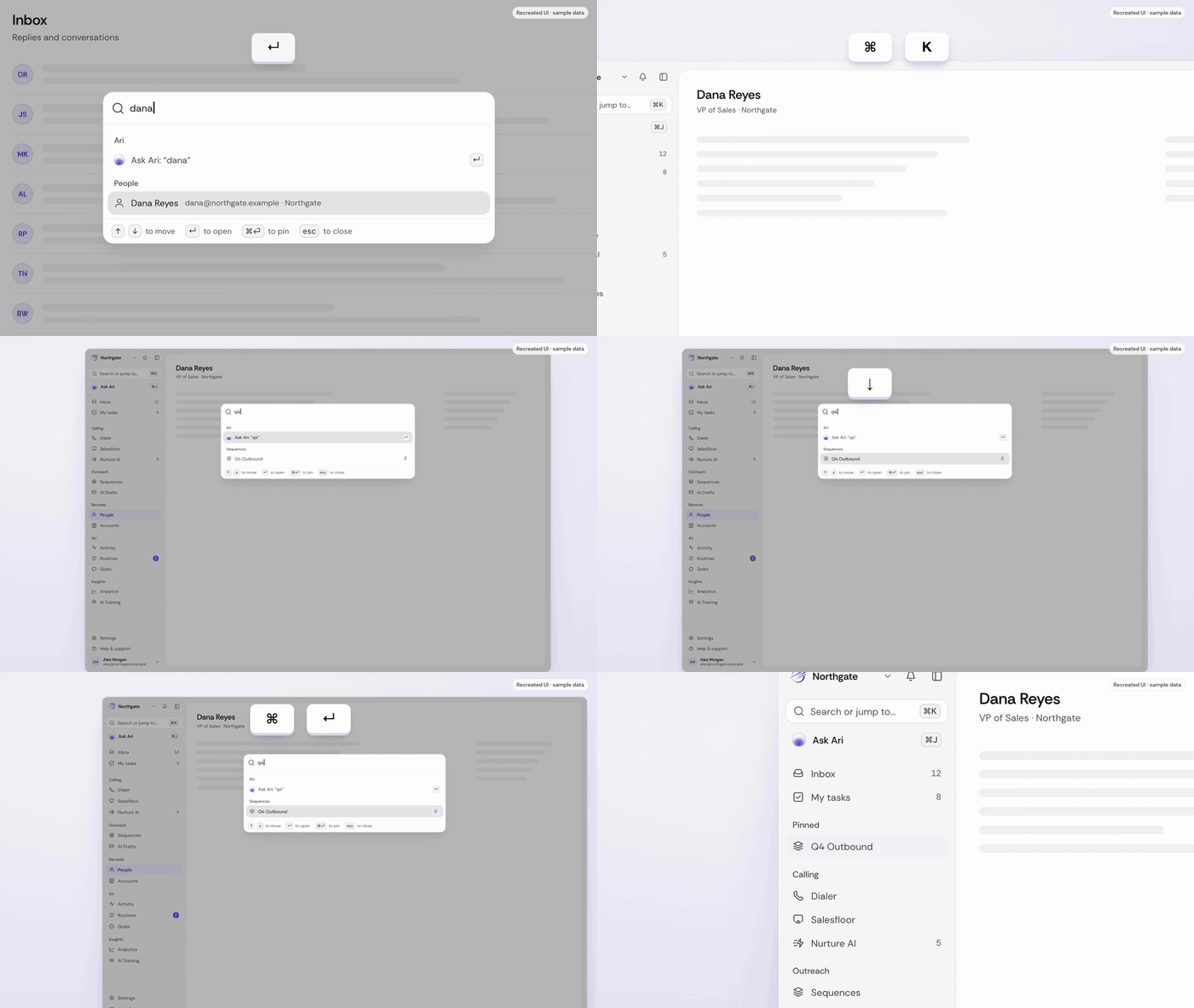
Pin them. Highlight anything in search and press Cmd+Enter (Ctrl+Enter on Windows) to pin it, or press it again to unpin. You can also click the + next to Pinned, which opens search so you can pick what to add.
You can pin up to 30 items: pages, saved People and Accounts views, sequences, routines and goals. Drag a pin to reorder it, or click the x to remove it. A rep working one sequence all week can pin it once and stop searching for it.
Can I ask Ari from anywhere?
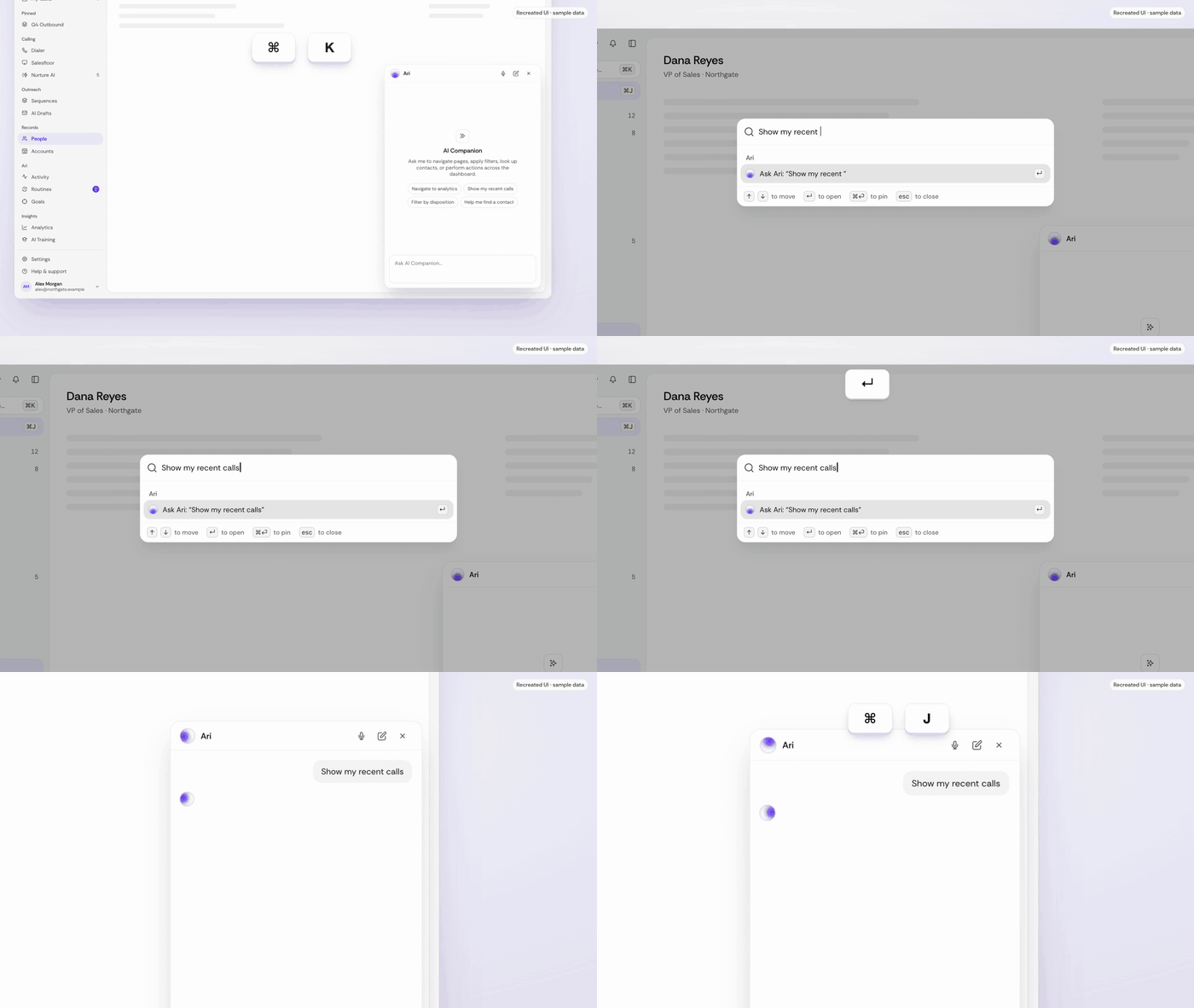
Yes, if your plan includes Ari. Press Cmd+J (Ctrl+J on Windows) or click Ask Ari in the sidebar to open it from any page. You can also type a question into Cmd+K search and choose to send it to Ari. Ari is available on Enterprise and Enterprise+ plans; if your plan doesn't include it, you won't see the button or the shortcut.
Can I make the sidebar fit how I work?
Yes, in a few ways:
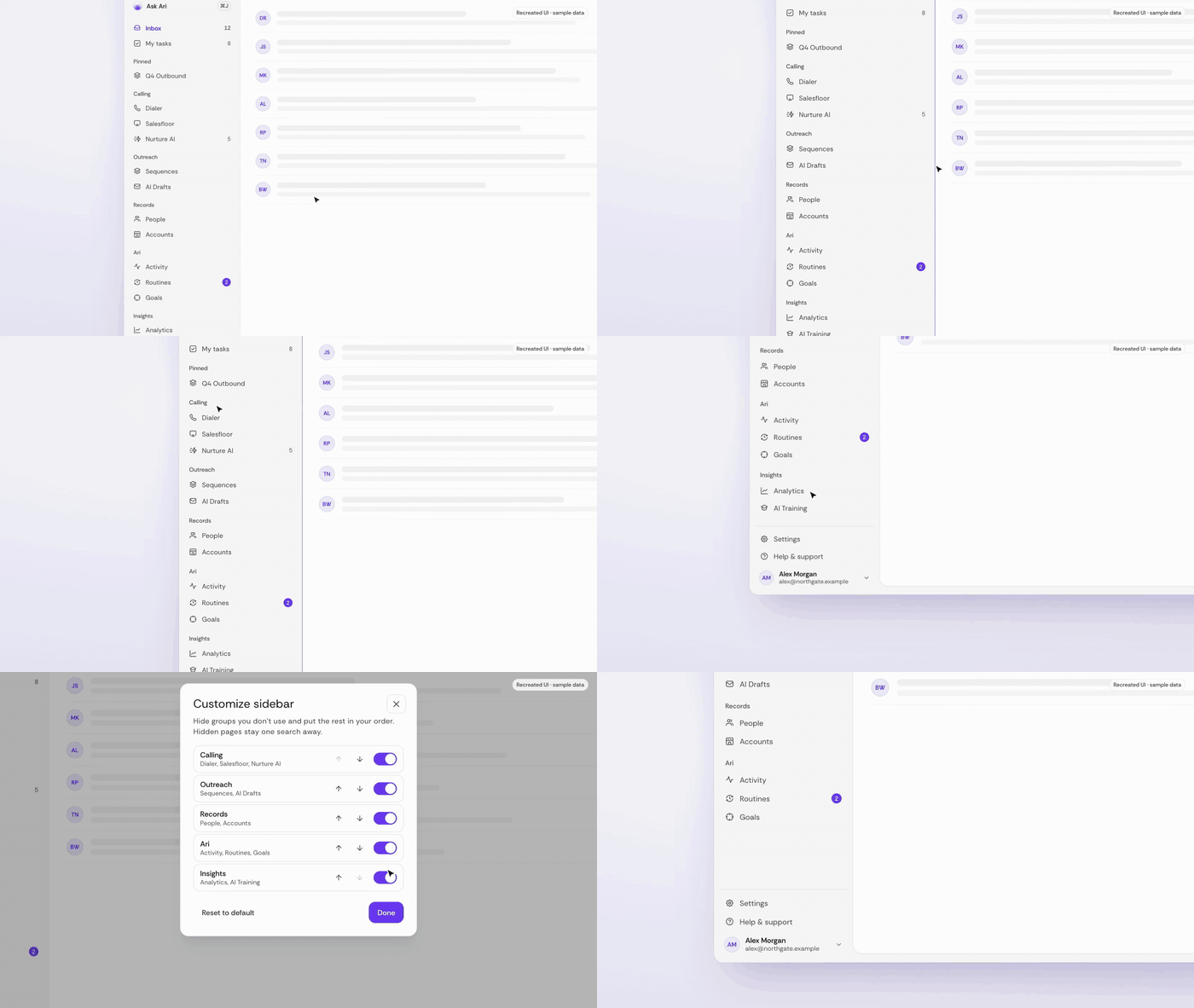
Customize sidebar. Open your profile menu and choose Customize sidebar. Move groups up or down and hide the ones you don't use. Changes save right away, and Reset to default puts everything back.
Collapse it. Press [ to shrink the sidebar to a slim icon rail, and press it again to bring it back.
Resize it. Drag the sidebar's edge to make it wider or narrower.
Fold groups. Click a group's title to fold it away until you need it.
What are the go-to shortcuts?
Press G, then a letter, to jump straight to a page. For example, G then D opens the Dialer. Shortcuts only work for pages you can open. Inside Sequencer and Contacts, those pages' own shortcuts take priority, so nothing you already know changes.
Press ? to see the shortcuts for your account. On pages with their own shortcuts, like Inbox, Sequences and People, ? shows that page's list instead.
Keyboard shortcuts cheat sheet
Action | Mac | Windows |
|---|---|---|
Search or jump to anything | Cmd+K | Ctrl+K |
Ask Ari (plans with Ari) | Cmd+J | Ctrl+J |
Pin or unpin the highlighted search result | Cmd+Enter | Ctrl+Enter |
Move through search results | Up / Down arrows | Up / Down arrows |
Open a search result | Enter | Enter |
Close search | Esc | Esc |
Collapse or expand the sidebar | [ | [ |
Show all shortcuts | ? | ? |
Go to Inbox / My tasks | G then I / G then T | G then I / G then T |
Go to Dialer / Nurture AI | G then D / G then F | G then D / G then F |
Go to Sequences | G then S | G then S |
Go to People / Accounts | G then P / G then A | G then P / G then A |
Go to Routines / Goals | G then R / G then O | G then R / G then O |
Go to Analytics | G then N | G then N |
Go to Settings | G then , | G then , |
How do I get started in 30 seconds?
Press Cmd+K (Ctrl+K) and type the name of a page, sequence or saved view you open every day.
Press Cmd+Enter (Ctrl+Enter) to pin it. Repeat for two or three favorites.
Press G then D to jump to the Dialer and start calling.
Press ? whenever you forget a shortcut.
That's it. The sidebar remembers your pins and group order, so it is ready the next time you sign in.
FAQ
Do I need to turn the new sidebar on?
No. It is live for everyone in Salesfinity today. Your pages are all still there, now grouped by the work they support.
Why don't I see some pages in my sidebar?
Each person only sees the pages their plan and team allow. Some pages, like Sequences, are in early access. If you think something is missing, ask your Salesfinity admin.
How many items can I pin?
Up to 30. You can pin pages, saved views, sequences, routines and goals. Drag pins to reorder them.
Does Cmd+J work on every plan?
No. Cmd+J opens Ari, which is available on Enterprise and Enterprise+ plans. On other plans, Cmd+K search and all the other shortcuts still work.
Can I hide groups I never use?
Yes. Open your profile menu, choose Customize sidebar, and switch off any group. You can also reorder groups there, or reset to the default layout.