Salesfinity Lemlist Integration, In-App CRM Editing, and 3 More Upgrades Shipped This Week


What's new in Salesfinity (April 2026)
This week we shipped five upgrades to the Salesfinity platform: full bi-directional Lemlist integration (now at parity with Outreach and Salesloft), jump-to-moment call transcript playback, in-app CRM field editing for HubSpot and Salesforce, smarter multi-number dialing that automatically rolls to the next number on dead-end dispositions, and a new Pylon-powered customer support experience.
Each one is live and rolling out to all customers automatically. No upgrade required, no settings to flip.
This post covers what each feature does, who it's for, and exactly how to use it.
1. Lemlist Integration — Now Bi-Directional (Full Parity)
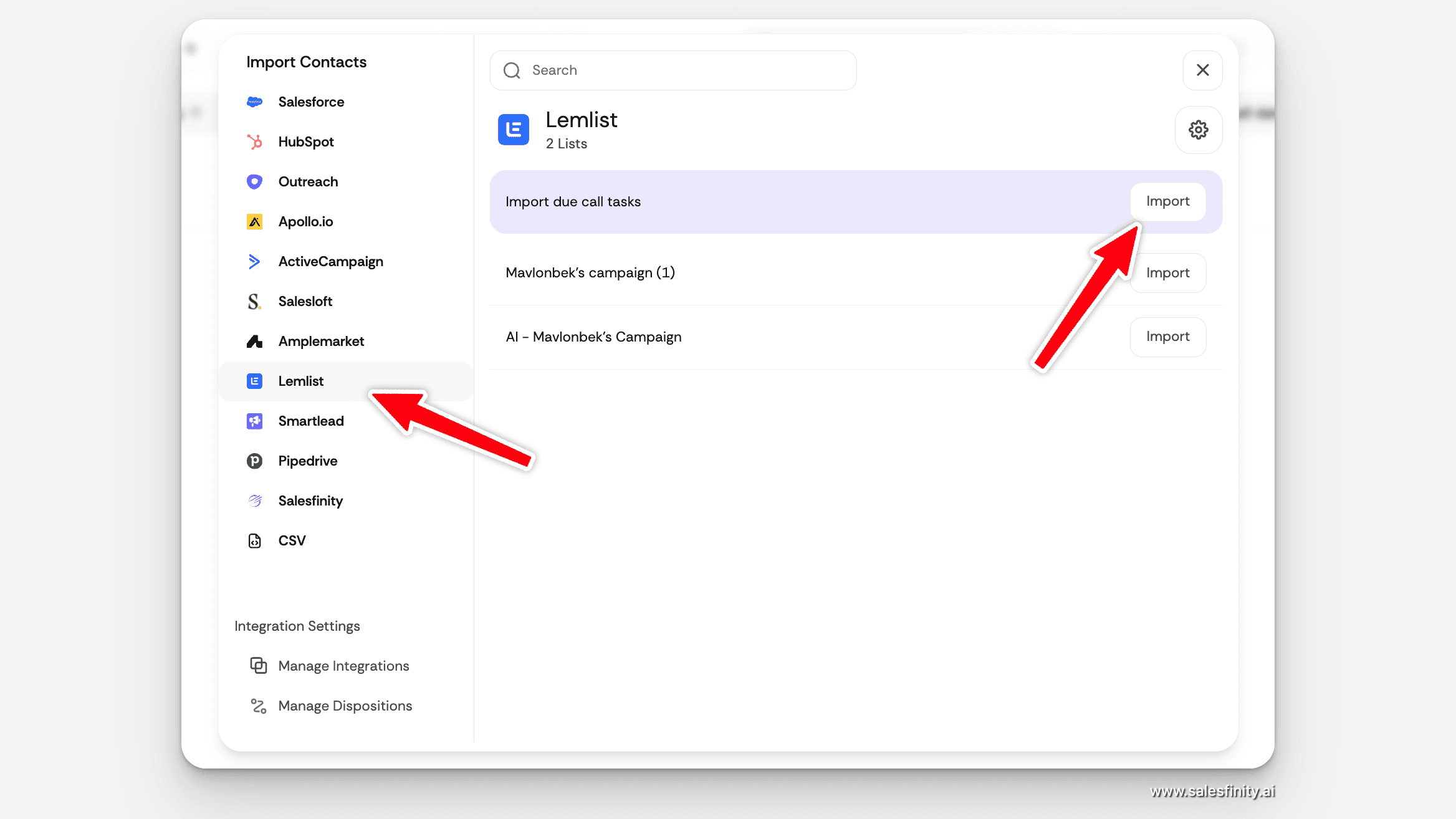
The Salesfinity Lemlist integration is now fully bi-directional, matching the depth of our Outreach and Salesloft integrations. If your team runs outbound through Lemlist, you no longer need to log calls manually or context-switch between tools.
What syncs (in both directions)
Call tasks pulled into Salesfinity. Every due call task assigned to a rep imports automatically. They land in the dialer queue with full prospect context.
Dispositions sync back to Lemlist. When a rep dispositions a call (Connected, Voicemail, Wrong Number, Not Interested, Booked Meeting, etc.), the disposition writes back to the corresponding Lemlist task without any manual logging.
End-in-sequence option supported. If a call ends with a "remove from sequence" disposition, Lemlist honors it automatically. No orphaned sequences.
Notes sync back. Whatever the rep types in the Salesfinity call notes field shows up in Lemlist on the contact record.
Inbound emails pulled into activity. Emails from the prospect appear in the contact's activity timeline inside Salesfinity, so reps see the full conversation history before they dial.
Who this is for
Any team using Lemlist as their sequencer that wants parallel dialing without losing the source of truth. Most parallel dialers force teams to choose: speed or clean data in the sequencer. The bi-directional sync means you get both.
How to enable it
If you already have Lemlist connected, the new sync features are live. If you haven't connected yet, head to Settings → Integrations → Lemlist and authenticate. The full sync activates immediately.
2. Jump-to-Moment Playback in Call History
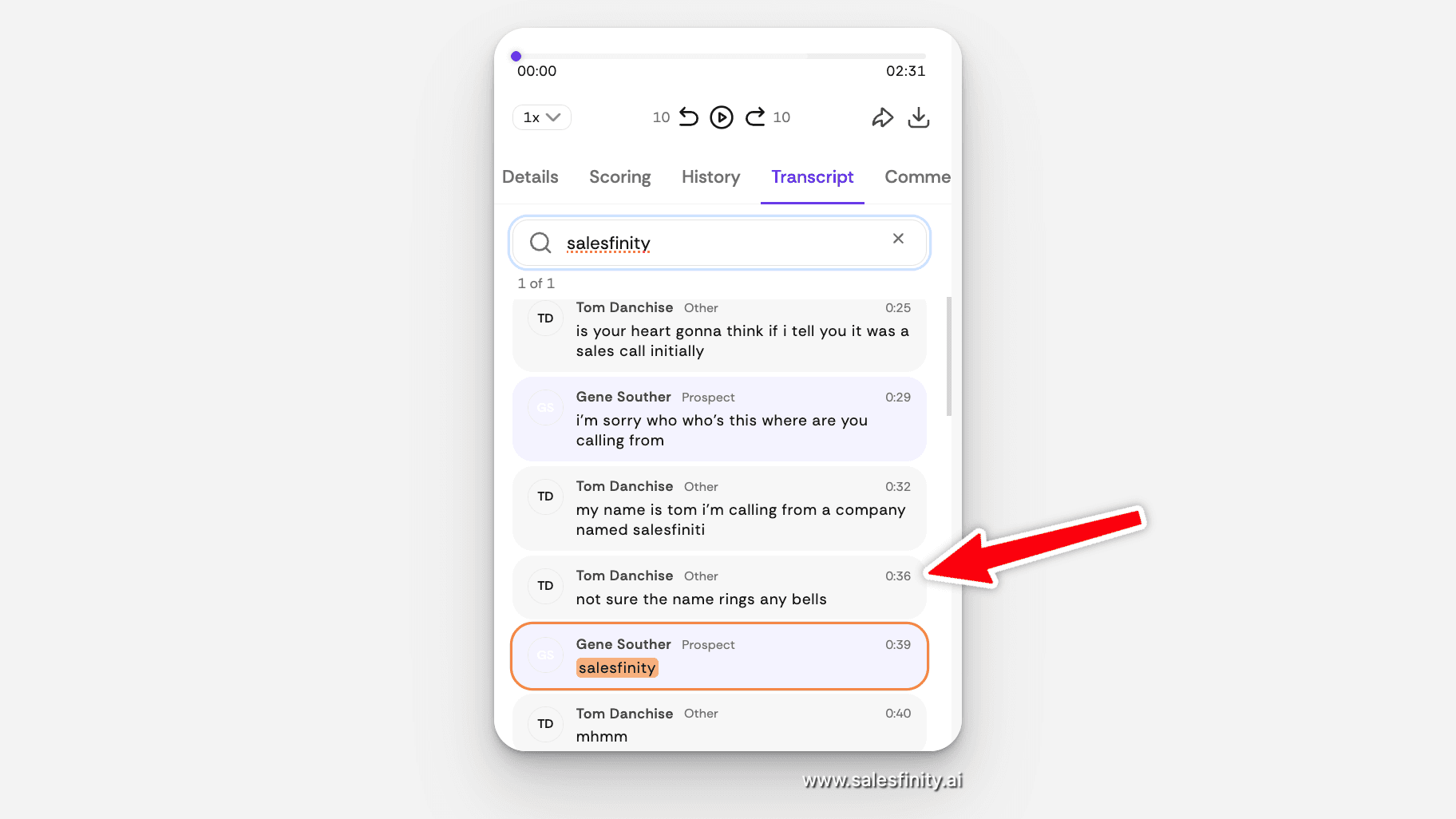
Every Salesfinity call transcript now supports click-to-jump playback and full-text search. When you click a timestamp inside a transcript, the audio jumps to that exact moment. When you search a phrase, every match across the call lights up.
Why this matters
Coaching a rep on a 27-minute discovery call used to mean scrubbing the timeline to find the moment that mattered. Now it's one click. For SDR managers reviewing 50+ calls a week, this turns a 90-minute review block into a 30-minute one.
What changed
Click any timestamp in the transcript view to jump audio playback to that second.
Search bar inside transcripts finds any phrase across the full call ("pricing," "objection," "decision-maker," competitor names) and highlights every match.
Live access during dial sessions. Reps can pull up a previous transcript while they're actively dialing, so context from prior conversations is one tab away — not buried in another tool.
Who this is for
SDR managers running structured call coaching, AEs preparing for follow-ups by reviewing the SDR-handed-off call, and any rep who wants to check what they said last time before dialing the same prospect again.
3. Edit CRM Fields Directly Inside Salesfinity
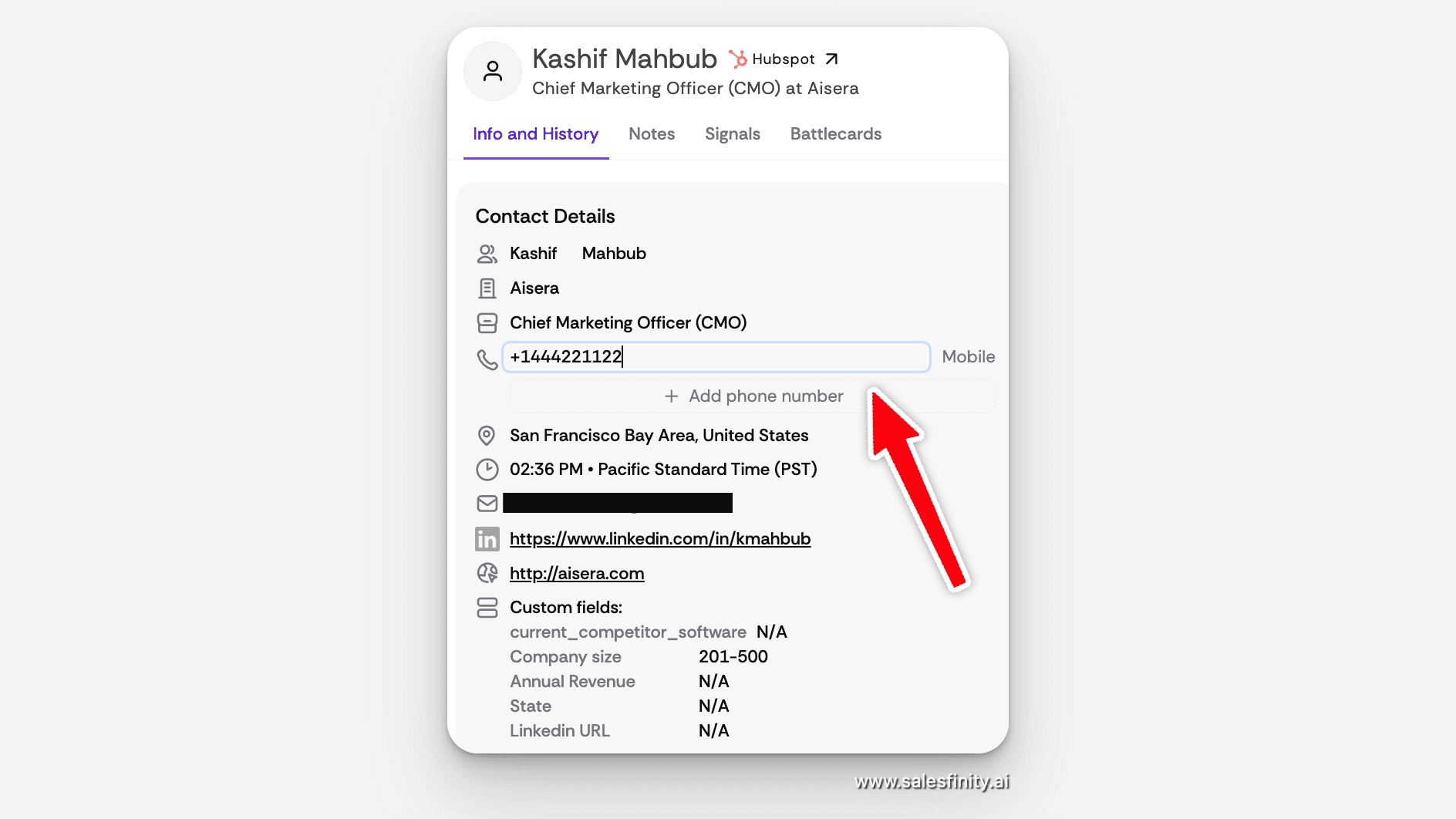
You can now edit HubSpot, Salesforce, Outreach, and Salesloft CRM fields directly inside Salesfinity. The change writes back to the CRM automatically. No tab-switching, no copy-paste, no waiting for the sync window.
This was the single most-requested feature from power users. It is now live.
What you can edit
Standard contact fields (name, title, email, etc.)
Custom fields mapped to your CRM
Phone numbers — you can add or correct numbers on the fly when a rep discovers a new direct line during a conversation
Why this matters
The hidden cost of a parallel dialer is data drift. A rep dials 100 contacts, learns a real direct number for 10 of them, but doesn't update the CRM because doing so means logging out, switching tabs, finding the contact, scrolling to the field, saving, switching back. So they don't. Multiply that by every rep, every week, and your CRM phone data degrades faster than your data vendor can refresh it.
In-app CRM editing closes that loop. Number gets corrected at the moment of discovery, the CRM stays clean, and the next rep dialing that contact gets the right number on the first try.
Supported CRMs
HubSpot, Salesforce, Outreach, Salesloft. More coming based on customer demand — if your CRM isn't listed, reply to any onboarding email and let us know.
4. Smarter Multi-Number Dialing
Salesfinity now reads the disposition of the first dial attempt and automatically rolls to the next available number on the contact when the disposition signals a dead end.
The old behavior
If a contact had three phone numbers on file and the first one connected to a wrong number or a call screener, that was the end of the attempt. The other two numbers sat untouched.
The new behavior
If the disposition is Wrong Number, No Answer, or Call Screener, Salesfinity automatically dials the next available number for that contact in the same dial session. The rep doesn't have to re-queue, doesn't have to remember, doesn't have to do anything. The system tries the next number, and the rep stays in flow.
If the disposition is something terminal (Connected, Voicemail Left, Not Interested, etc.), the dialer moves on to the next contact as before.
Why this matters
Connect rates are a function of how many actual phone numbers you dial per contact, not just how many contacts you load into the dialer. Most teams have 2-3 numbers per contact in their CRM and only ever dial the primary. Smart multi-number dialing means you actually use the data you already have.
The math: if your average contact has 2.4 numbers and your old workflow dialed only 1, you're now getting up to 2.4x the dial coverage per contact for zero additional rep effort.
5. New Customer Support Experience: Pylon Replaces Intercom
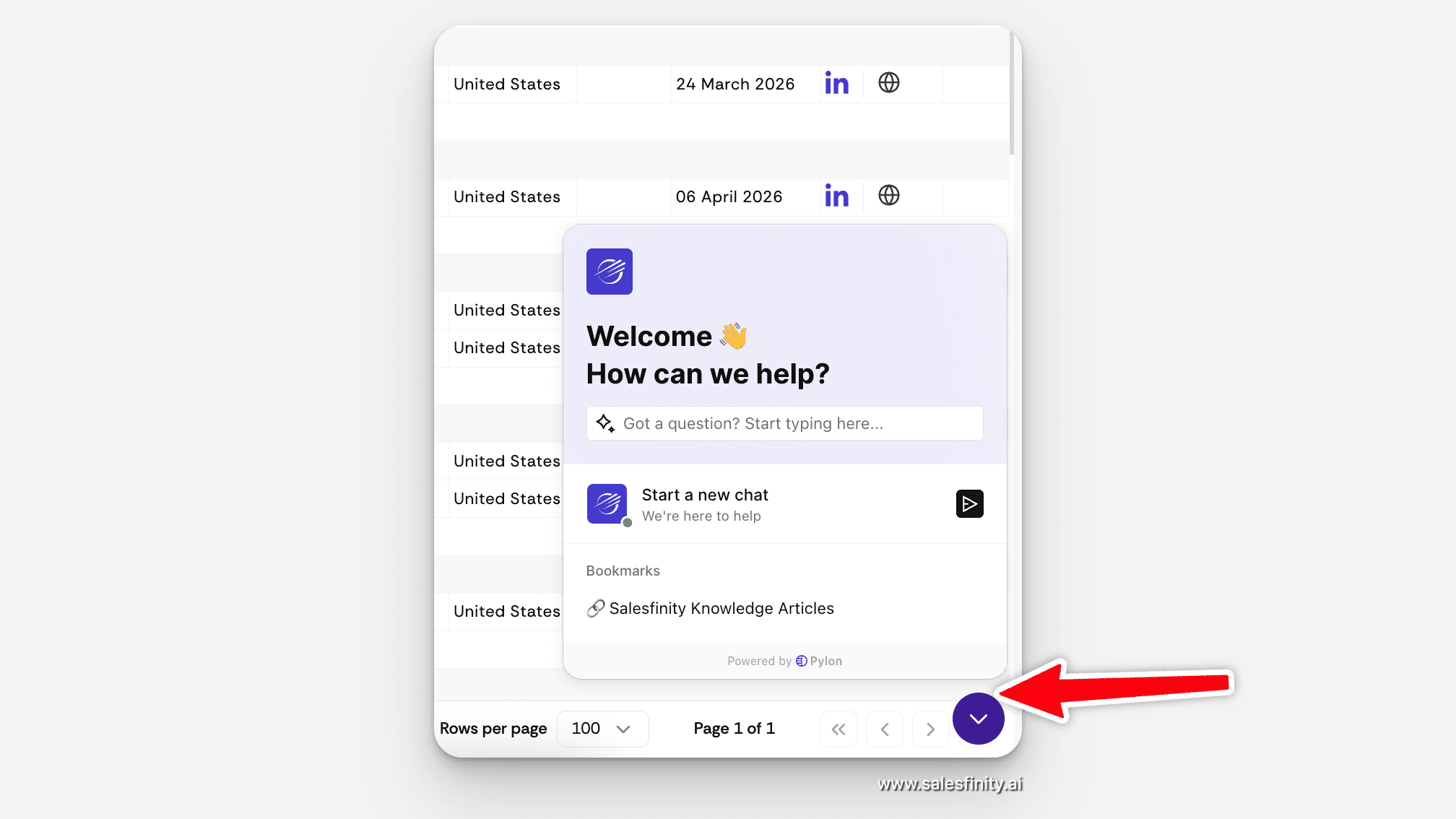
Salesfinity's customer support is now powered by Pylon. You can reach our team via in-app chat, email, or shared Slack channels — whichever works best for you.
What changed
Chat is still available in-app, with faster response times and better context preservation.
Email continues to work for any customer who prefers asynchronous threads.
Slack is now a first-class channel. We can set up a shared Slack channel between your team and ours, so feature requests, bug reports, and quick questions all live where your team already works.
Want a shared Slack channel?
Reply to any email from the Salesfinity team and we'll set it up.
Frequently Asked Questions
Does the Lemlist integration require a paid Lemlist plan? The Salesfinity-Lemlist integration works with any Lemlist plan that supports API access. If you can connect Lemlist to other tools, you can connect it to Salesfinity.
Does jump-to-moment playback work on calls recorded before this release? Yes. The playback enhancement is a UI improvement — it works on any call that has a transcript, regardless of when the call happened.
If I edit a CRM field inside Salesfinity, when does the change reach my CRM? Immediately. The write-back happens in real time, not on a sync cycle.
For multi-number dialing, can I configure which dispositions trigger the next-number roll? The default set is Wrong Number, No Answer, and Call Screener. Custom disposition rules are on the roadmap — reply to your CSM if you need a specific configuration today.
How do I get a shared Slack channel with the Salesfinity team? Reply to any email from us, or message your CSM directly. We'll provision the channel within one business day.
When is the next release? We ship continuously. The next batch of upgrades will land next week, and you'll see them in the Salesfinity changelog and via email.
See Everything in Action
The fastest way to see how all five of these upgrades fit together is to watch them run on a live dial session with your own ICP.