Score calls your way: configurable call scoring is live


Ask five sales managers what a great cold call sounds like and you'll get five different answers. One wants permission asked in the first ten seconds. One wants a reframing insight before any pitch. One doesn't care how the rep opens as long as there's a booked next step at the end.
They're all right. That's the problem with a fixed scorecard. It grades everyone against one opinion of good, and it's rarely yours.
Starting today, Salesfinity scores calls the way you tell it to. Managers set the method, the weights, and the rules. Every connected call gets graded against that, automatically.
What changed
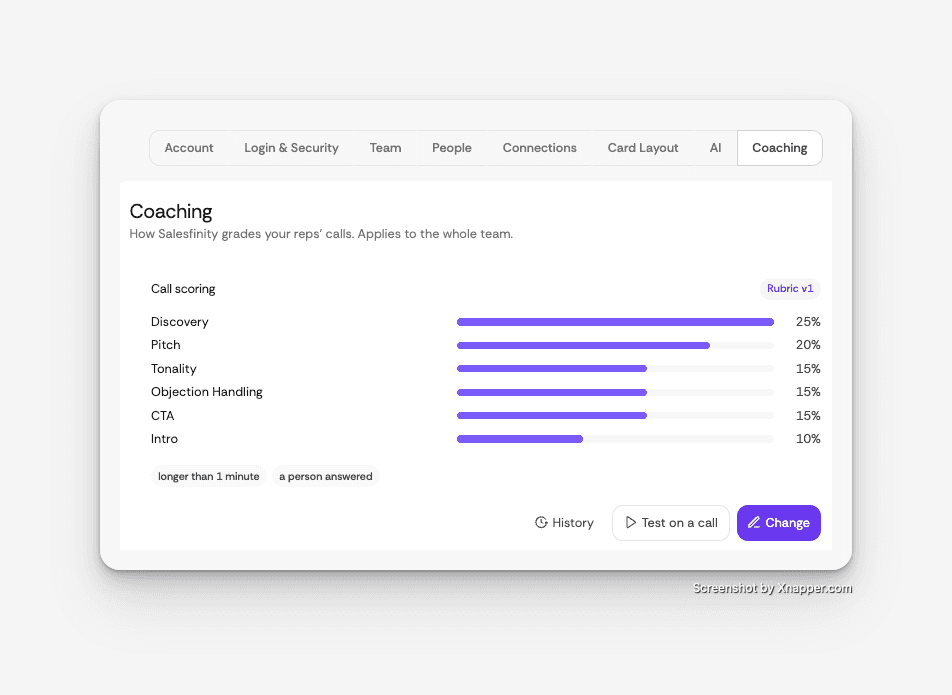
Call scoring in Salesfinity used to run on one rubric. It was a reasonable rubric, but it was ours. Now it's yours. Go to Settings → Coaching, click Change, and you'll walk through six steps. Most teams finish in ten minutes.
1. Start from a method
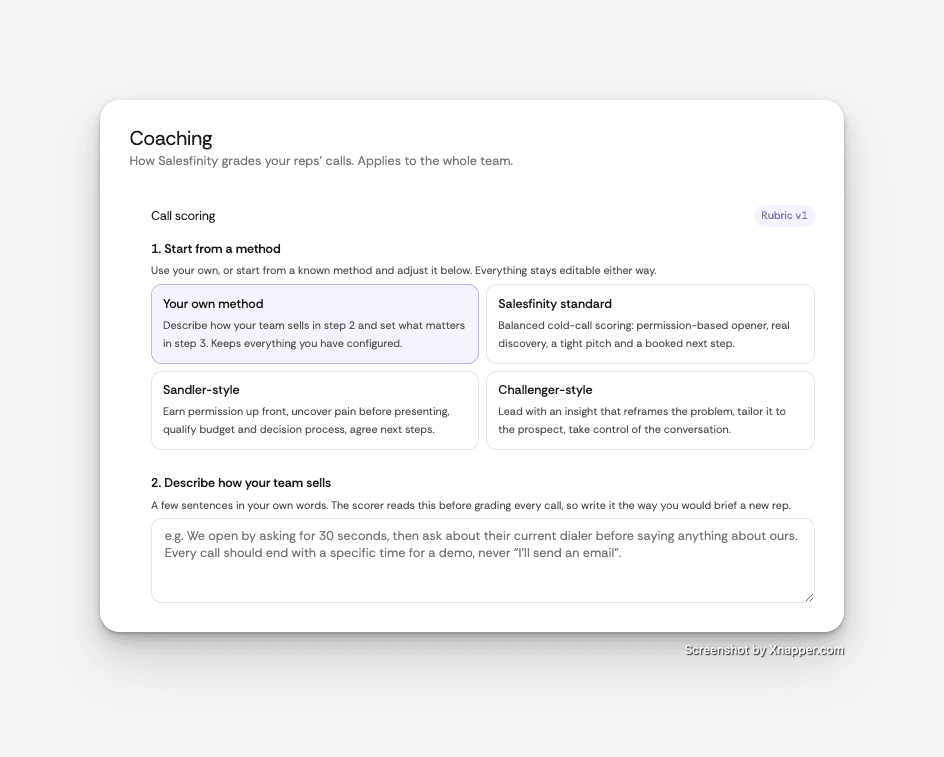
Pick a starting point:
Your own method. Describe how your team sells and set what matters. Best if you already have a scorecard you trust.
Salesfinity standard. Balanced cold-call scoring: permission-based opener, real discovery, a tight pitch, a booked next step.
Sandler-style. Earn permission up front, uncover pain before presenting, qualify budget and decision process, agree next steps.
Challenger-style. Lead with an insight that reframes the problem, tailor it to the prospect, take control of the conversation.
The presets are starting points, not locks. Everything stays editable after you choose.
2. Describe how your team sells
A few sentences, in plain language. The scorer reads this before it grades every call, so write it the way you'd brief a new rep on day one.
We open by asking for 30 seconds, then ask about their current dialer before saying anything about ours. Every call should end with a specific time for a demo, never "I'll send an email."
This is the part most teams skip in scoring tools, and it's the part that makes the scores match what you actually see in the call. Context beats checkboxes.
3. Set what matters
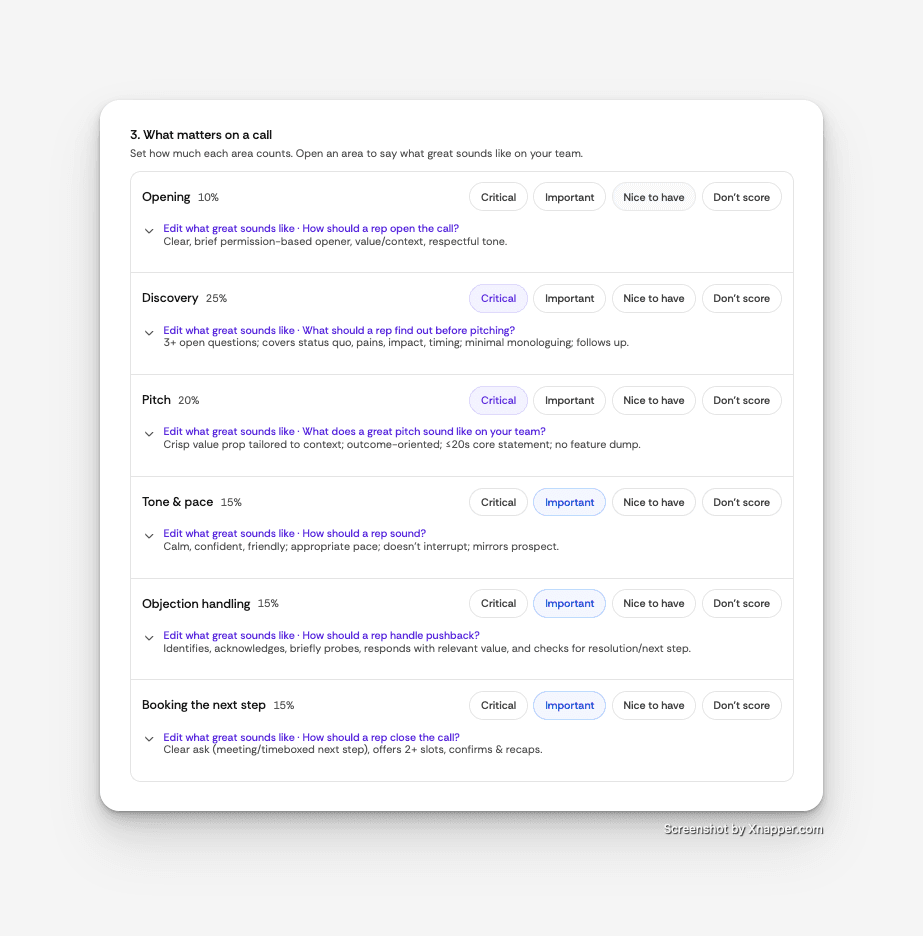
Six areas: Opening, Discovery, Pitch, Tone & pace, Objection handling, Booking the next step. For each one, pick a level:
Level | What it means |
|---|---|
Critical | Carries the most weight. A miss here tanks the score. |
Important | Counted, but survivable. |
Nice to have | Small weight. Good to see, not required. |
Don't score | Ignored entirely. |
Weights redistribute as you go, and you can see how the 100-point score will split before you save. If you'd rather set exact percentages, you can.
Open any area to define two things: what great sounds like and what a deal-breaker is. For Opening, that might be "clear, brief permission-based opener" on one side and "no permission; clumsy or abrupt cold open" on the other. The scorer uses your words, not a generic definition.
4. Add must-do checks
Some things aren't a spectrum. Either the rep asked what dialer the prospect uses today, or they didn't. Add those as must-do checks and each one is graded as done, partly done, or not done on every call.
5. Choose which calls get scored
By default, scoring runs automatically on calls longer than one minute where a person answered. Voicemails and 12-second hang-ups don't count against anyone.
6. Test it on a real call
Before you save, run the method against a past call and read the result. If a score looks wrong, adjust the weights or the description and run it again. You're not guessing what the rubric will do in production.
Versions, so you can change your mind
Every saved method gets a version number. Change the weights in October and the calls from September still show what they were scored against. History shows what changed and when.
This matters more than it sounds. Coaching conversations go badly when a rep's score dropped because the rubric moved, not because the rep did. Versioning keeps that honest.
Why this is the right way to score calls
Scores are only useful if reps believe them. A rep who gets a 61 with no idea why shrugs it off. A rep who gets a 61 and can see "Discovery: 3+ open questions expected, you asked one" has something to work on before the next call.
Configurable scoring closes that gap because the rubric comes from the manager, in the manager's language. The rep already heard the same expectations in training. The score is just the same standard applied to every call, without anyone having to listen to all of them.
For managers running a team on Salesfinity, that means:
Coaching gets specific. Scores break down by the areas you defined, so 1:1s start from "here's the pattern" instead of "let's listen to a few."
Standards stay consistent. Every call, every rep, same rubric. No drift between what one manager and another calls good.
Methodology actually sticks. If you trained the team on Sandler or Challenger, you can score to it. Training and measurement finally point the same direction.
How to set it up
Open Settings → Coaching.
Click Change next to your current rubric.
Pick a starting method, describe how your team sells, set what matters.
Add must-do checks if you have them.
Click Score a past call with this method and sanity-check the result.
Save scoring method. It applies to the whole team from the next scored call.
If you'd like help turning an existing scorecard into a method, reply to the announcement email or message support in the app. We'll do it with you.
FAQ
Does the scoring method apply to the whole team or per rep? The whole team. One method, one version, applied to every rep's calls. Individual reps see the same rubric their manager set.
Can I use my own sales methodology instead of the presets? Yes. Choose "Your own method," describe how your team sells, and set the weights. The Sandler-style and Challenger-style presets are optional starting points you can edit or ignore.
What happens to old scores when I change the method? They stay as they were. Each method is versioned, and every scored call records which version graded it. Changing the rubric only affects calls scored from that point on.
Which calls get scored automatically? By default, calls longer than one minute where a person answered. Both conditions can be adjusted in step 5 of the setup.
Can I turn off scoring for an area entirely? Yes. Set it to "Don't score" and it's excluded from the 100-point split.
Can I test the method before it goes live? Yes. Step 6 lets you score any past call with the draft method before you save it.
How is the 100-point score calculated? Each area you score gets a share of 100 points based on its level (Critical, Important, Nice to have). You can see the split before saving, or set exact percentages yourself. Must-do checks are graded separately as done, partly done, or not done.
Where do I find it? Settings → Coaching. Admins and managers can edit the method; reps can view it.